• How to remove a file with Kate

    by  • October 25, 2012 • Users • 6 Comments

    KDE has all these little nifty features, and – guess what – Kate has them, too. Here, we’ll have a look at how to delete a file with Kate. We’ll start with opening the file we want to delete. Example:
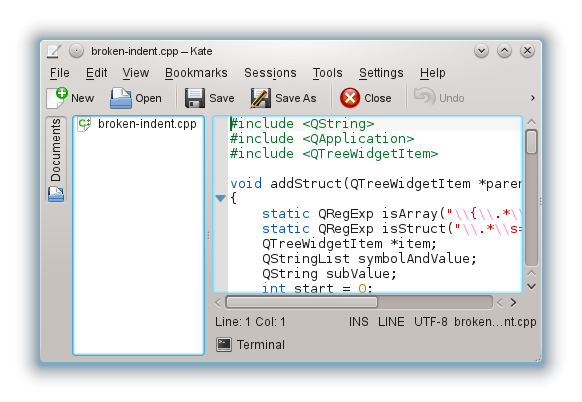
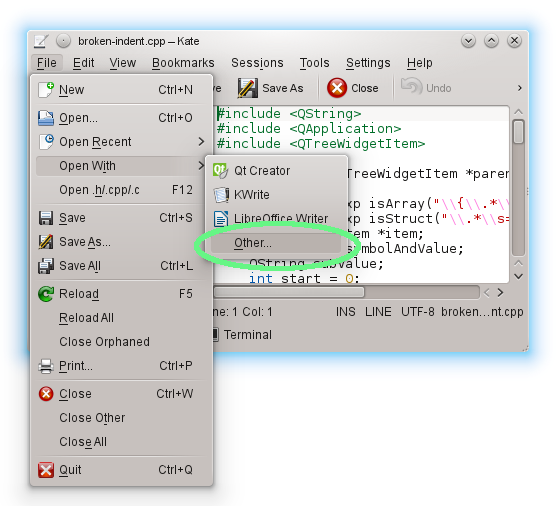
    Next, we open the menu File > Open With and choose Other… as follows:
    We’re almost done: Type ‘rm’ in the Open With dialog:
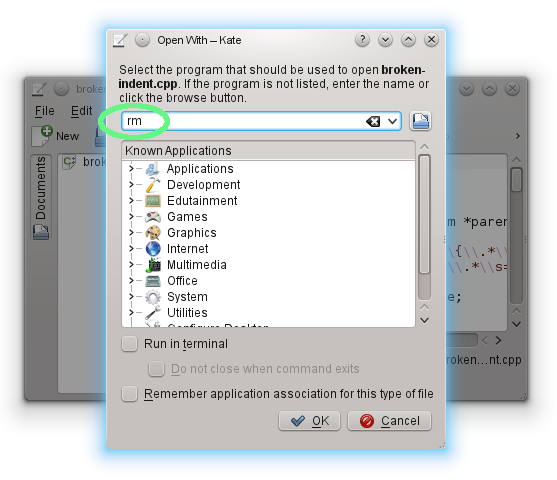
    Now click OK to perform the action, et voila:
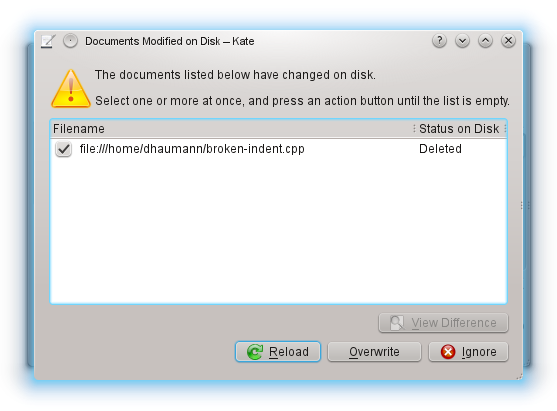
    Now as you can see, Kate notifies you about the successful deletion. In case you change your mind, you can write it to disk again by clicking Overwrite. Reloading will tell you, that the file can indeed not be found, proving that Kate did exactly what you want. You can also ignore what you just did, which is probably the best choice. Don’t tell anyone :-)

    PS: This tip comes from the KDevelop developers. So all Kudos and Cake go to them!
    PPS: We are working hard at the Kate/KDevelop sprint in Vienna to provide the best tools for our users!

    About

    Dominik is a PhD student at the Control Theory and Robotics Lab, TU Darmstadt, as part of the Research Training Group GKMM (GRK1362). My research focuses on state estimation in distributed systems. As hobby, I contribute to the KDE project and work on the Kate application and editor component.

    http://www.kate-editor.org

    6 Responses to How to remove a file with Kate

    1. martin
      October 26, 2012 at 00:55

      Another way to remove a file with Kate: Go to View->Tool Views->Show Terminal. From there you can do all kinds of interesting stuff…

    2. October 26, 2012 at 08:41

      I wouldn’t do that! And I alias rm to “rm -i”. This just doesn’t look good.

    3. ben
      October 26, 2012 at 14:01

      @xolve: Aliases should only be defined for interactive shell sessions.

    4. October 26, 2012 at 21:13

      Absolutely awesome. I use Kate for managing lots of files in elaborate directory structures. And I don’t clean up files I don’t need anymore because it is too much work to find them… This is far easier :D

      So, super tip. Thanks!

      • October 26, 2012 at 22:52

        Dude! Glad you find it useful.
        We’re at the the KDevelop/Kate sprint in Vienna right now, and all had a good laugh about it :-D

    5. framp
      October 27, 2012 at 15:09

      Even simpler:
      1. Ctrl+O or Open to get to the file selection dialog (which open the directory in which the file is located)
      2. Delete the file with Del, Shift+Del or with the usual contextual menu